DaVinci Resolve: turning an AAF into a Logic Pro session (FCPXML or AAF)
- Audio Export
- Sound Design
- DaVinci Resolve
- Logic Pro
- AAF
- FCPXML
When a picture edit reaches a sound designer working in Logic Pro, it usually arrives as an AAF. Opened straight in Logic, it does not always come through intact.
Our workflow now runs it through DaVinci Resolve first. Resolve reads the AAF and writes out a version Logic handles properly, in one of two ways:
- Final Cut Pro XML (FCPXML), with the Final Cut Pro X preset. This is the one we use by default.
- A new AAF, with the Pro Tools preset. It works too, with one catch about fades, covered below.
Updated October 2026. This replaces the earlier version of this article, which covered the Pro Tools preset only.

1. Import the AAF into Resolve
- Open a new project in DaVinci Resolve.
- Go to File › Import › Timeline (⇧⌘I).
- Select the AAF file.
- Keep the proposed settings and make sure Import multi-channel audio tracks as linked groups is checked, then click OK.
- Play the timeline and check the video with its audio: picture and sound both present, in sync, and no offline clips.
Then go to the Deliver page.
2. Deliver with the Final Cut Pro X preset (recommended)
Pick Final Cut Pro X from the render presets. Resolve sets the render to Individual clips.
Video
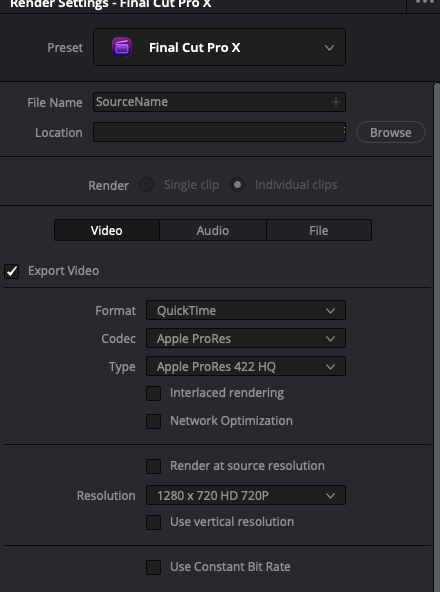
- Export Video: on
- Format: QuickTime
- Codec: Apple ProRes
- Type: Apple ProRes 422 HQ
- Interlaced rendering, Network Optimization: off
- Render at source resolution: off
- Resolution: 1280 x 720 HD 720P. The video is a reference, not a deliverable, so there is no reason to ship a heavier file.
- Use vertical resolution, Use Constant Bit Rate: off
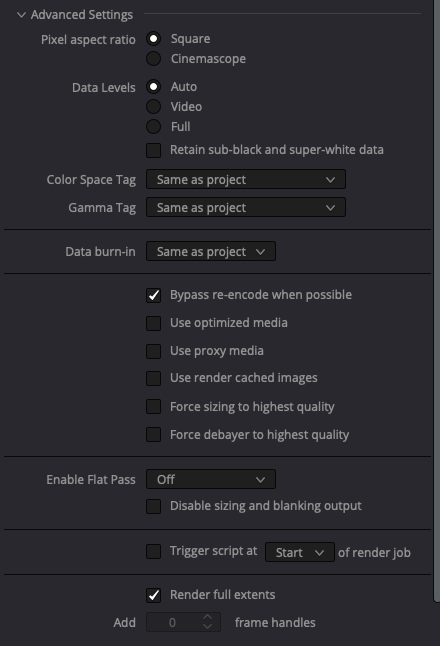
Under Advanced Settings, leave everything at its default except:
- Bypass re-encode when possible: on
- Render full extents: on
Audio
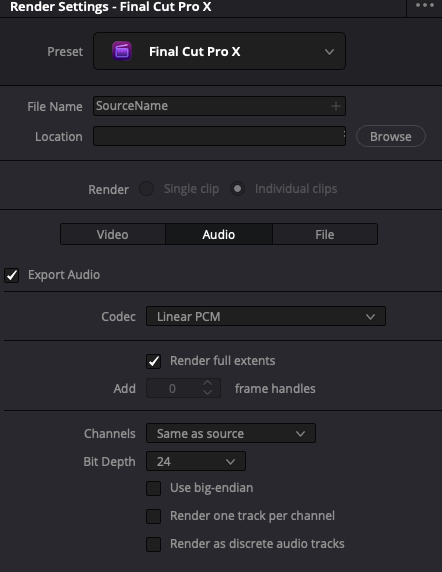
- Export Audio: on
- Codec: Linear PCM, so the audio is written as uncompressed PCM
- Render full extents: on. Whole source files are exported, not only the part sitting in the timeline, so the sound designer can reach material before and after every edit point. Frame handles are greyed out with this on: the whole file already covers them.
- Channels: Same as source
- Bit Depth: 24
- Use big-endian, Render one track per channel, Render as discrete audio tracks: off
What big-endian, full extents and one track per channel actually do is explained in section 4.
Click Add to Render Queue and render. In Logic Pro, open the result with File › Import › Final Cut Pro XML.
3. Or: deliver with the Pro Tools preset (AAF)
Before rendering, remove every fade from the timeline. With this preset, fades come through as empty space in the AAF Logic opens, cutting holes at the edges of the clips. The Final Cut Pro X route does not do this.
Then pick Pro Tools from the render presets. The render is again Individual clips.
Video
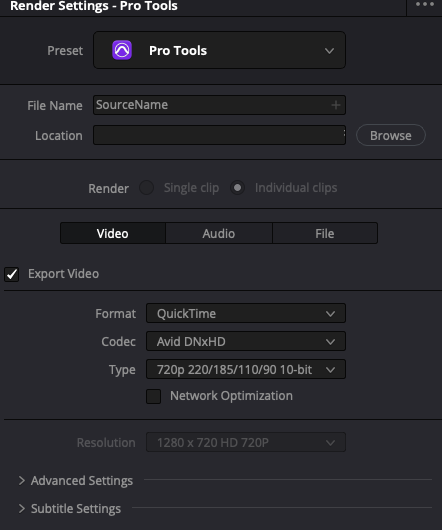
- Export Video: on
- Format: QuickTime
- Codec: Avid DNxHD
- Type: 720p 220/185/110/90 10-bit
- Network Optimization: off
- Resolution: 1280 x 720 HD 720P, fixed by the codec type
Audio
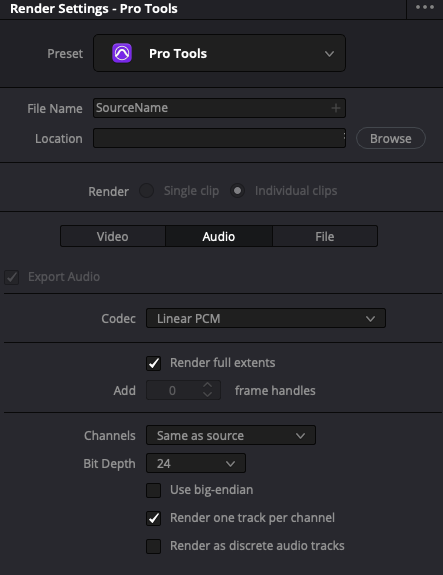
- Export Audio: on (locked by the preset)
- Codec: Linear PCM
- Render full extents: on
- Channels: Same as source
- Bit Depth: 24
- Use big-endian: off
- Render one track per channel: on
- Render as discrete audio tracks: off
File
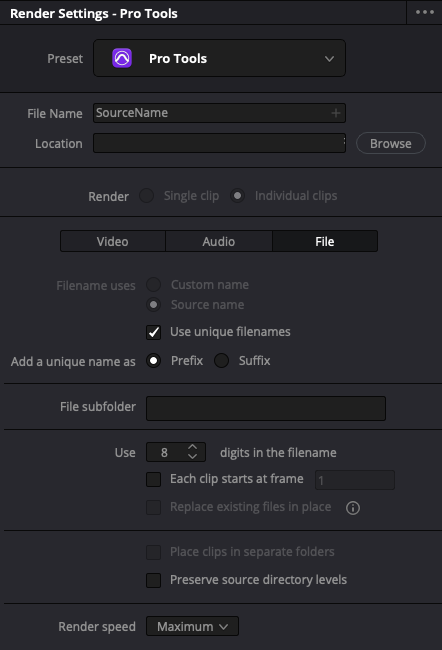
- Filename uses: Source name
- Use unique filenames: on, added as a Prefix
- File subfolder: empty
- Use 8 digits in the filename
- Each clip starts at frame, Preserve source directory levels: off
- Render speed: Maximum
Add it to the render queue and render. In Logic Pro, open the result with File › Import › AAF.
4. What the audio options mean
Three checkboxes in the Audio tab come up in almost every question we get about this article. Here is what each one does.
Use big-endian
This sets the byte order the audio samples are written in. A 24-bit sample takes three bytes, and a file can store them most-significant byte first (big-endian) or least-significant byte first (little-endian).
It changes nothing you can hear: the samples are identical, only the order of the bytes on disk differs. Big-endian is a leftover of older Macs and of the AIFF format. WAV files and today's Intel and Apple Silicon machines use little-endian, and that is what Logic Pro and most other tools expect.
Leave it off, in both presets, unless the software you are delivering to specifically asks for big-endian audio.
Render full extents
When Resolve renders Individual clips, it writes one media file per clip in the timeline. This option decides how long each file is:
- Off: only the part of the source used in the edit, plus any frame handles you set (for example, 2 seconds either side).
- On: the entire source file, from its first frame to its last, whatever portion the editor actually used.
For sound, this matters. A dialogue line cut tight in the picture edit often needs a breath before it, room tone after it, or an alternative word from elsewhere in the take. With full extents the sound designer can simply drag the clip's edges in Logic and find it all there, without asking for the rushes again. That is why the frame handles setting is greyed out when it is on.
The cost is size and render time. If the editor used ten seconds of a twenty-minute interview, all twenty minutes are exported. On a long-form project with heavy rushes, if the export gets too big, turn full extents off and set generous frame handles instead (5–10 seconds is usually enough).
Render one track per channel
This splits every multichannel clip into mono tracks, one per channel.
- A stereo clip becomes two mono tracks, left and right.
- A four-channel location recording (say a boom and three lavaliers) becomes four mono tracks, one per microphone.
That is how Pro Tools traditionally works, with each channel as its own mono file, which is why the Pro Tools preset turns it on. For dialogue it is also what a sound designer wants: every microphone lands on its own track, ready to be chosen, cleaned and balanced separately.
The drawback is that stereo music and effects arrive as pairs of mono tracks, which have to be panned hard left and right (or rejoined) to sound as they did in the edit.
In the Final Cut Pro X route it stays off: the clips keep the channel layout of their source files, and Logic imports them that way.
That's it
Either way, the session opens in Logic Pro with the tracks laid out as they were in the edit, the full source audio behind every clip, and a reference picture to work against.
If you are sending us a picture edit for sound design, mix or mastering, write to info@soundniccolo.com if anything here is unclear.